
Training: requirements review and QA plans
Manually configure, simulate and run a manager-reviewed QA-plan workflow using existing AI actions and a custom ticket field.
On this page
- What this workflow does
- Prerequisites and limits
- 1. Add the destination field
- 2. Create the manual chain
- 3. Configure the requirements check
- 4. Configure AI drafting
- 5. Require approval and map the destination
- 6. Simulate, publish and enable
- 7. Run, review and save
- Worked Harbor example
- Re-run and troubleshoot
- Verification record
On this page
- What this workflow does
- Prerequisites and limits
- 1. Add the destination field
- 2. Create the manual chain
- 3. Configure the requirements check
- 4. Configure AI drafting
- 5. Require approval and map the destination
- 6. Simulate, publish and enable
- 7. Run, review and save
- Worked Harbor example
- Re-run and troubleshoot
- Verification record
What this workflow does
This guide is for project managers and site administrators. It builds a manual workflow that checks whether requirements are present, drafts a requirements assessment and QA test plan, requests manager approval, and saves only the approved plan into a QA test plan custom field.
The original description, acceptance criteria, assignee and status remain unchanged. This is planning assistance, not proof that tests passed and not a protected quality gate. The saved field remains editable and does not automatically become invalid when requirements change.
You can follow every setup step in Nearer's interface. No code or database access is required. Begin in the private SAMPLE project before configuring real work.
Prerequisites and limits
- A project manager or administrator creates the field, edits/publishes the workflow and approves the result. Viewers cannot start or approve this workflow.
- A site administrator must have enabled AI, an allowed model, and AI automation under Site settings → AI & automation. Project automation must also be enabled under Project settings → Automation runs.
- Retain existing budgets and the free-only deployment safeguards. Enabling AI automation can activate other published chains in projects that already enable automation; review those first. Do not enable unrelated chains for this exercise.
- The AI step uses the site's enabled default model at run start. If it is unavailable, stop and resolve configuration rather than selecting a paid service.
- The current ticket context contains its title, status, up to 5,000 characters of description and 3,000 of acceptance criteria. This example excludes comments, history and dependencies. It does not open attachments, inspect repositories or run tests.
- The destination is a plain-text custom field with a 5,000-character limit. The prompt targets under 4,000 characters. Longer output fails validation instead of being silently truncated.
1. Add the destination field
- Select Sample project in the project selector.
- Open Project settings → Details, types & fields.
- Find Custom fields, then Add custom field.
- Enter QA test plan in Name and choose text in Type. Nearer derives the identifier
qa_test_planfrom this name. - Select Add field to configuration, then Save configuration. Adding it to the form alone does not save it.
- Leave Required and Archived unchecked. If this field already exists, reuse it only if it is an active text field. Do not recreate it or overwrite an incompatible field.
Open a ticket to confirm QA test plan appears among its custom fields. It is currently a single-line plain-text input, not a separate Markdown editor. Multiline AI output remains stored, but this input displays its lines together and scrolls horizontally. Read the full formatted proposal in Automation activity; do not use this narrow input to review the entire plan. The generated plan uses plain-text headings and numbered cases.
2. Create the manual chain
- Open Workflows and choose Sample workflow in Select workflow.
- Check for existing unsaved or unpublished changes. Review them separately; publishing this tutorial must not publish somebody else's unfinished edits.
- Under Attached automation chains, inspect any existing chain with this name first. Reuse a compatible existing example rather than creating a duplicate. Otherwise select Add chain.
- Set Chain name to Review requirements and draft QA plan.
- Leave Trigger as Manual start and Run for execution mode as Any mode.
- Create four actions in this order using Add action. Newly added actions initially use Notify / handoff; change their types as described below. Do not leave a notification action in this chain.
| Order | Action name | Action type | Next action |
|---|---|---|---|
| 1 | Check requirements present | Condition | Draft QA plan |
| 2 | Draft QA plan | AI generate | Review proposed QA plan |
| 3 | Review proposed QA plan | Approval | Save approved QA plan |
| 4 | Save approved QA plan | Update fields | Finish chain |
Choose Check requirements present as First action. Adding actions may connect the previous action automatically, but verify every Next action after all four exist.
Nearer generates internal action IDs when you use the interface. The reproducible example uses requirements_present, draft_qa, review_qa and save_qa; your generated IDs will differ. Use the output picker in step 5 rather than typing somebody else's internal ID.
3. Configure the requirements check
- Change the first action's type to Condition, then set its name to Check requirements present. Changing type resets type-specific defaults, so choose the type first.
- The default condition may be All blockers resolved. Select its Remove condition, then select Add conditions within this action.
- Choose Match all.
- Configure a field condition: Description → Is populated.
- Select Add field condition and configure Acceptance criteria → Is populated. Remove any duplicate default condition.
- Set Next action to Draft QA plan.
- Leave When condition is false at Finish chain.
This is a deterministic presence check. Empty and formatting-only text do not pass. It does not judge whether the requirements are good; the AI assessment and human reviewer do that later. A false result ends the run without inference or ticket changes. Inspect its recorded condition reasons in Automation activity.
4. Configure AI drafting
For Draft QA plan, choose:
| Control | Value |
|---|---|
| Action type | AI generate |
| AI task | Draft ticket content |
| AI model | Use site default at run start |
| Context to include | Check ticket only; uncheck comments, history and dependencies |
| Next action | Review proposed QA plan |
Paste this into Additional prompt:
Review the supplied ticket description and acceptance criteria, then propose a QA test plan. Put the complete assessment and plan in the response's description field. Return the ticket's existing title unchanged and do not propose changes to its acceptance criteria.

Use plain-text headings and numbered test cases. Keep description under 4,000 characters and include at most ten focused cases.

Include: requirements readiness; missing or ambiguous requirements; test preconditions and data; test cases; and coverage limitations.

Each test case must identify the supplied requirement it covers, steps and expected result. Include relevant happy paths, negative cases, boundaries and accessibility checks. Clearly label assumptions and cases blocked by missing requirements. Do not invent product behavior.

Assess only supplied information. Do not claim to have inspected code, opened attachments, run tests or verified the application. State that this is a proposed test plan, not test evidence.
Draft ticket content is the existing structured output format. We use its description output as a container for the QA plan. That does not mean the ticket description will be changed. Only the final field mapping determines what gets saved; the returned title and acceptance values are ignored.
5. Require approval and map the destination
For Review proposed QA plan, select Approval, then set Next action to Save approved QA plan. An eligible project manager must approve; Agent execution mode does not skip this explicit node.
For Save approved QA plan:
- Select Update fields.
- Remove the default description field using Remove field. This is essential: leaving it would risk replacing the requirements description.
- In Add field to update, choose
custom.qa_test_plan. - In Insert output for custom.qa_test_plan, choose the description output of the earlier Draft QA plan AI action. The picker shows its generated internal ID.
- Check Allow generated value for this field.
- Verify that this is the only field configured. Set Next action to Finish chain.
For the reproducible example, the value is:
{{steps.draft_qa.description}}
In a chain created manually it will look like {{steps.action12345678.description}}. Use your actual AI node's output, not the Condition node or a copied ID. The destination must remain custom.qa_test_plan, never description or acceptance.
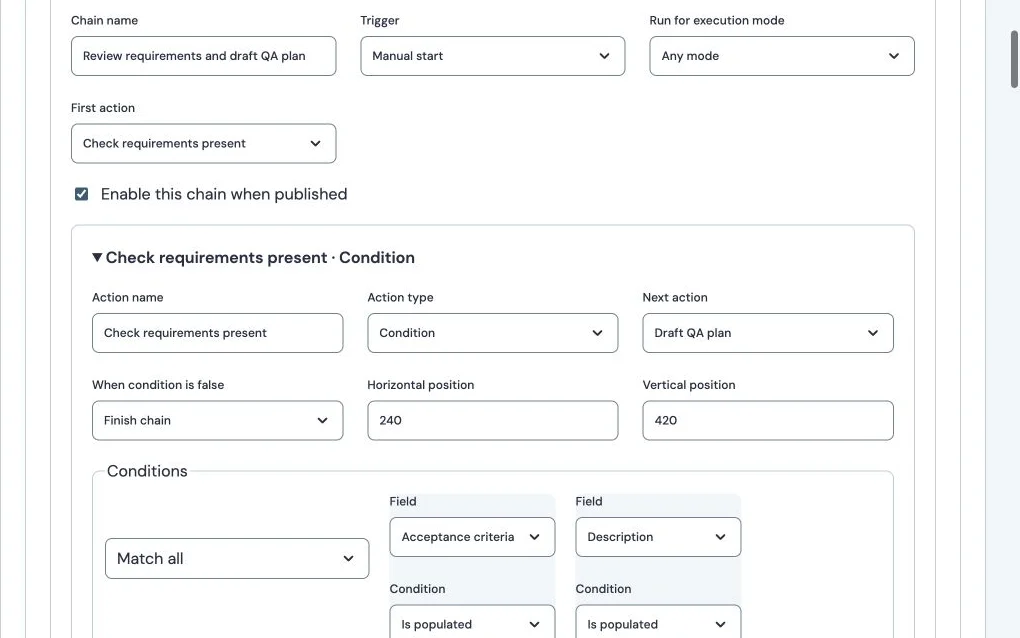
Manual requirements check configuration
Production configuration captured through the authenticated interface. Only description and acceptance-criteria presence are checked here; no inference or ticket edit was performed by this capture. Internal action IDs are generated by the interface.
6. Simulate, publish and enable
- Select Save draft. This does not activate the chain.
- In the chain's Simulate ticket selector, choose SAMPLE-3 · Upload supporting documents. Select Simulate chain.
- Confirm the true path includes the AI step, manager approval and only the QA-field update. Simulation performs no inference, saves nothing and sends no notifications. It can show the final generated update as approval-requiring as well; the explicit manager approval carries to the directly following update during execution.
- Close the simulation. Check Enable this chain when published, save the draft, and select Preview publication.
- Review affected tickets and stage mappings. This example changes no stages, so it should require no replacement-stage mapping. Select Publish workflow only after reviewing the complete draft.
- Under Project settings → Automation runs, check Enable published automation in this project, leave Daily project runs unchanged, and select Save automation settings.
- If site automation is disabled, an administrator enables its existing switch under Site settings → AI & automation, preserving models and all usage limits. Review other enabled project chains before doing so.
An enabled chain with a manual trigger runs only when deliberately started. Do not change it to Ticket created, Stage entered, Fields changed or All blockers resolved while following this exercise.
7. Run, review and save
- Open SAMPLE-3. Its action area now includes Review requirements and draft QA plan, alongside Automation activity. Select the named chain button to start a new run; opening Automation activity alone does not start it.
- In Automation activity, choose View run for the new run. Alternatively open Project settings → Automation runs.
- Wait for awaiting-approval. Inspect the AI output, missing requirements, assumptions, cases, expected results and destination mapping.
- Confirm the ticket's saved QA plan has not changed yet. Compare any existing plan before approving a replacement.
- As an eligible manager, select Approve reviewed changes. Wait for completed.
- Reopen or refresh the ticket and inspect QA test plan. Verify the original description, acceptance criteria, status and assignee remain unchanged. The chain's save is distinct from manually editing the ticket's fields.
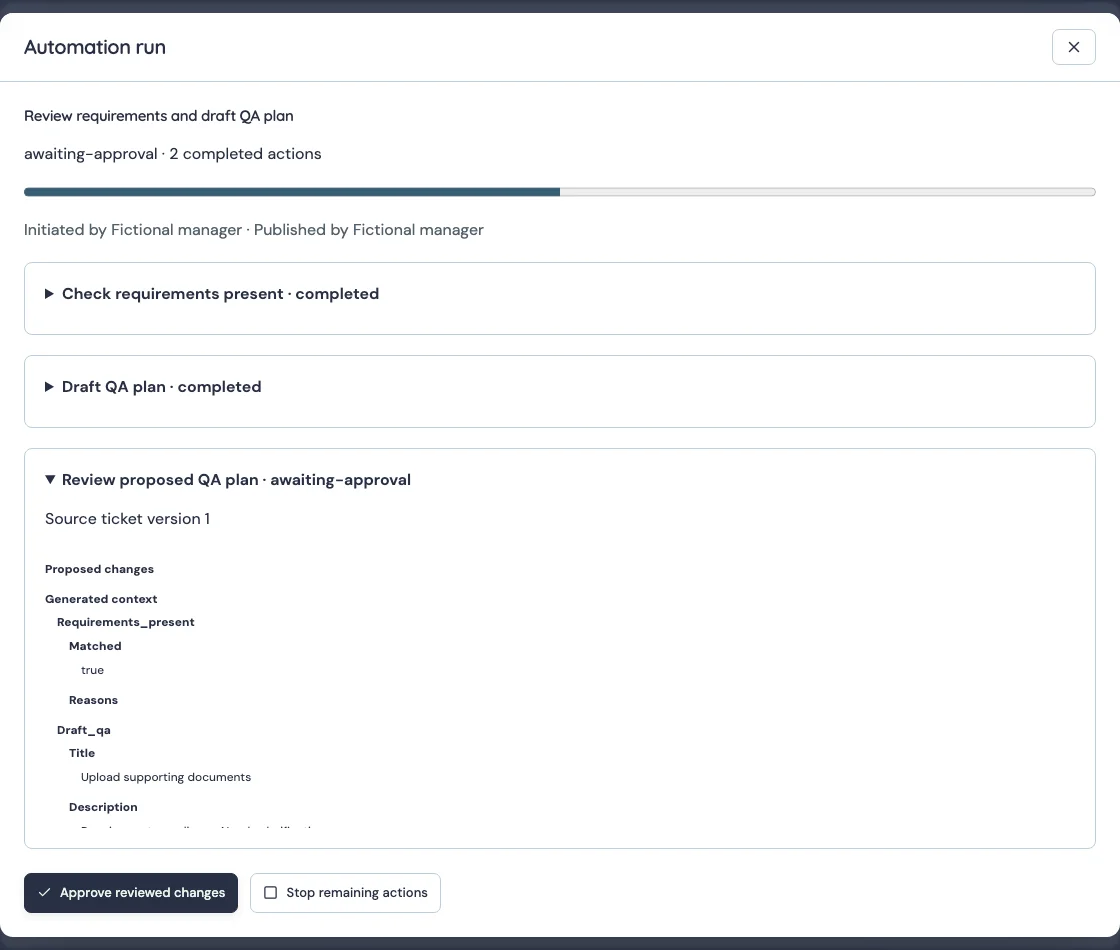
Manager approval of the proposed QA plan
Local browser verification fixture with fictional output from API/evaluator tests. This is a simulated model result, not production inference. The explicit manager Approval node precedes the custom-field save. Scroll the generated-context pane to read the complete proposed plan.
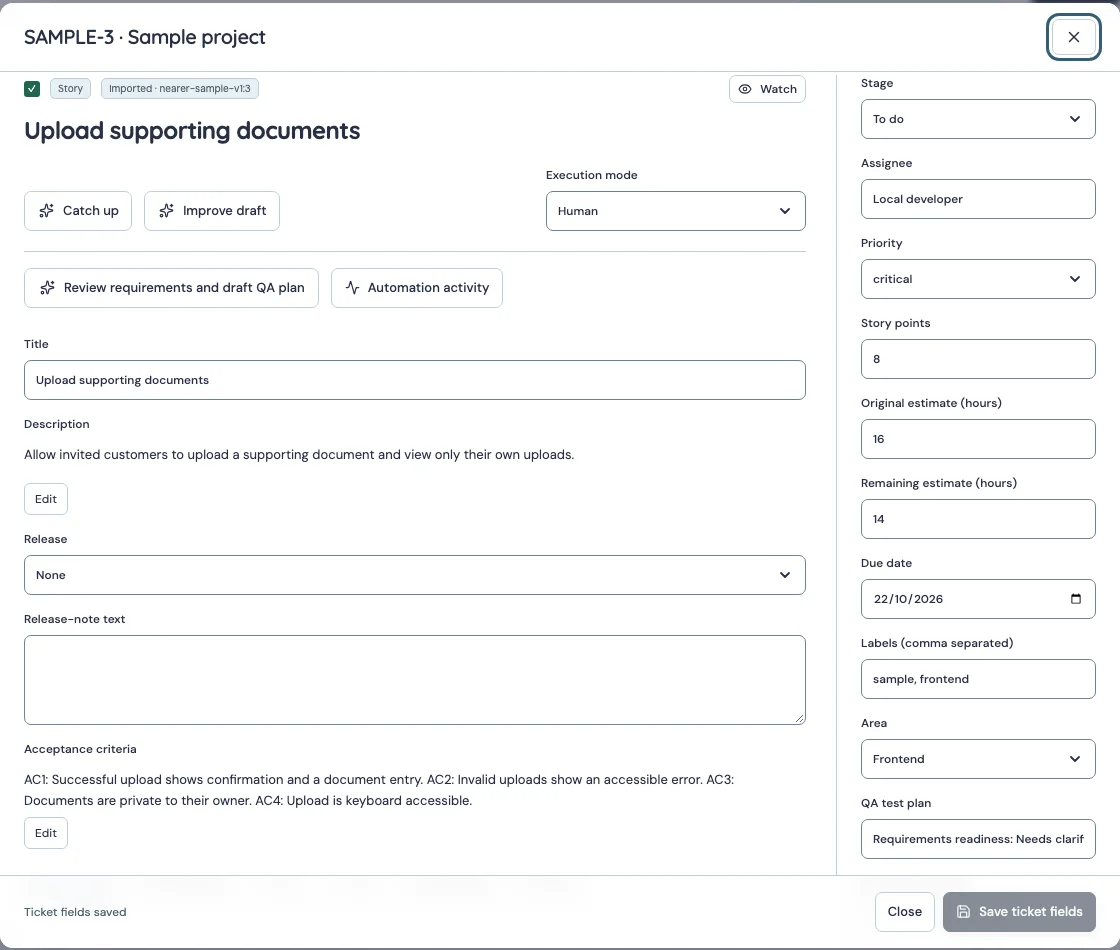
Approved plan in the QA test plan field
Local verification fixture after approval; no production content was changed. The existing single-line text input displays the beginning of the saved multiline value. Read the full plan in Automation activity.
The approval and saved-result captures above are explicitly labelled local verification fixtures. They exercise the real interface with fictional output; they are not evidence of production inference. See the verification record below for the live production outcome.
Worked Harbor example
Use a fictional ticket named Upload supporting documents. The example below is instructional; it does not overwrite the existing SAMPLE-3 requirements.
Description:
Allow invited customers to upload a supporting document and view only their own uploads.
Acceptance criteria:
AC1: Successful upload shows confirmation and a document entry.
AC2: Invalid uploads show an accessible error.
AC3: Documents are private to their owner.
AC4: Upload is keyboard accessible.
Illustrative output, written for training rather than generated by a production model:
Requirements readiness: Needs clarification.
Missing requirements: Specify allowed file types, maximum size, duplicate-file behavior and retention. Do not assume these values.
Preconditions/data: Invited user; keyboard access; one permitted file; disallowed and oversized files once limits are agreed.
1. Upload success (AC1): Select a permitted file and upload. Expect confirmation and a new entry in the user's document list.
2. Upload failure (AC2): Attempt a disallowed or oversized file. Expect an accessible error and no entry. Blocked until limits are agreed.
3. Access isolation (AC3): Use a different invited user. Expect no access to another user's private document.
4. Keyboard access (AC4): Complete upload without a pointer. Expect logical focus and announced confirmation/error.
Coverage: Proposed plan from supplied requirements only; no code, attachments or running application inspected and no tests executed.
Do not approve invented limits or treat “Needs clarification” as a machine-enforced rejection. This chain requires a human to decide whether the proposed plan is useful. Stop the remaining work instead of approving a plan you do not accept.
Re-run and troubleshoot
| Situation | What to do |
|---|---|
| Chain button absent | Check ticket workflow, published chain enablement, Manual start trigger and project membership. |
| Automation disabled | Check site and project switches without changing budgets or activating unrelated chains. |
| Requirements check is false | Read the condition reasons and fill the missing saved requirements, then start a fresh run. |
| Awaiting approval | An eligible manager reviews and approves; ordinary members and viewers cannot approve this explicit node. |
| Source changed | A ticket edit, comment or related activity can stale the proposal. Use Prepare fresh retry where offered, or start a fresh run; review the new proposal. |
| Missing/wrong variable | Re-select the AI node's description output from the picker. Never use another chain's generated action ID. |
| Invalid/oversized output | Inspect the error and adjust the prompt before retrying. Existing saved content remains; output is not silently truncated. |
| Budget-blocked | Inspect existing usage. Wait for the documented reset or stop the run; do not raise limits or enable paid inference to finish the tutorial. |
| Need to reject/cancel | Use Stop remaining work. It stops later steps and does not undo already committed changes. |
| Need a revised plan | Start another manual run and compare the replacement before approval. Requirements changes do not automatically clear the saved field. |
A fresh run can consume another AI call. Resume the existing operation when appropriate rather than starting duplicates. Do not leave a budget-blocked training run unattended if it should not resume after reset.
Verification record
Configuration and screenshots are verified against Nearer on October 18, 2026. The production chain is configured on SAMPLE's Sample workflow. The controlled production run on SAMPLE-3 passed the requirements check, then stopped at Nearer’s existing internal daily AI budget before inference. It was cancelled so it cannot resume after reset. No production QA plan was generated or saved, and no budgets were increased. Local approval/results are labelled verification fixtures. Existing internal reservations, Cloudflare allowances and source-version checks remain in force.