
Tickets and people
Create, organize and update tickets, including hierarchy, user fields, dependencies and reviews.
On this page
On this page
Create a ticket
Members with project write access can use Create ticket. Choose the project and ticket type, enter a short title, then supply the relevant fields. Description and acceptance criteria use the Markdown editor. Save creates the ticket and its stable project key.
Ticket types belong to three hierarchy levels: epic, standard ticket and subtask. Default standard types include story, task and defect. Projects can add types within those levels; they do not create arbitrary hierarchy levels.
For Harbor, use an epic for customer onboarding, a story for uploading a support document, a task for accessibility checks and a defect for a failed upload retry. Parent links organize scope; they do not automatically copy a sprint or release to children.
Select people
User fields use searchable people inputs. Focus the field to see recent eligible choices or alphabetical suggestions. Type a name or email, use arrows to highlight a result and Enter to select it. Escape dismisses suggestions; clearing the selected person uses the field's empty option where available.
Typing an arbitrary name does not select a person. Assignment requires an eligible active project member or administrator. Other user-reference fields use their own access rules; being a selectable reference does not make a viewer an eligible assignee. Successful saves update recent selections; cancelled drafts do not.
Bulk assignment only offers people eligible for all selected tickets. Duplicate names are distinguished with email while selecting; do not assume the first matching name is the intended account.
Edit fields and organize work
Open a ticket from a card or result row. Edit priority, labels, dates, estimates, assignee, parent, sprint and optional release as appropriate. Projects may add text, number, date, checkbox, choice and user-reference fields.
Large text fields have explicit field-level Save and Cancel. Other ticket edits retain their own save action. A workflow transition evaluates proposed field values, so supplying a required field and moving status together can succeed when the completed ticket meets the rule.
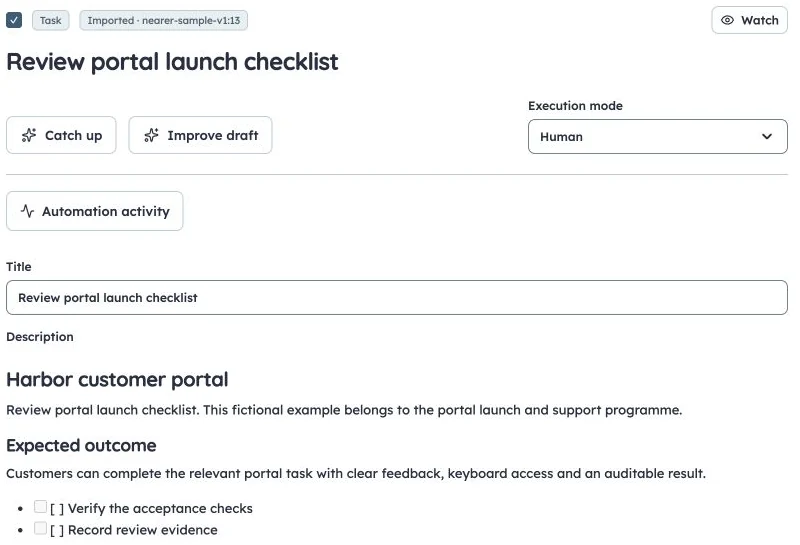
Ticket Markdown and fields
Production fictional launch-checklist ticket, cropped to omit account and people details.
A release must belong to the ticket's project. A live release locks its ticket membership; reopen the release before changing that scope. Archived configuration can retain historical values even when it is no longer offered for new selection.
Dependencies and reviews
Use Links to record relationships, including blockers. Resolve the underlying work before a guarded transition that requires all blockers resolved. Related work you cannot access produces a generic blocked explanation rather than exposing its details.
Review requests are lightweight requests attached to a ticket. Choose an eligible reviewer and inspect pending/completed requests. Workflow rules can require no pending reviews or at least one completed review; these are distinct checks. A completed review does not automatically move the ticket.
Bulk actions and card actions
Select accessible tickets in a list or backlog, choose the bulk operation and review affected fields before applying it. Cross-project changes retain each project's field choices and permissions. Status changes still use each ticket's workflow; bulk updates cannot bypass missing requirements, release locks or version conflicts.
Ticket actions and attachment actions are menus. Ticket detail tabs separate comments, attachments, time, links, development and history. Inspect History for actor, date and before/after values; add a reason where a change requires or benefits from one.
Common problems
- Person missing: check active membership, the field's purpose and the selected projects.
- Move blocked: read the workflow failure; changing only the card column does not bypass it.
- Save conflict: retain your draft and compare the newer saved record before retrying.
- Wrong estimate: points, original hours and remaining hours are separate values, not automatic conversions.