
Markdown, mentions and attachments
Edit rich text explicitly and manage private files, previews and embedded references.
On this page
On this page
Edit rendered Markdown
Descriptions, acceptance criteria, comments, release descriptions, release notes and sprint goals support Markdown. Saved content renders until you select editable text or its Edit action. Links and attachment previews open their target without activating editing.
Use the icon toolbar for formatting; hover or focus an icon for its accessible label. The text-style selector offers Paragraph and Heading 1–6. Other tools include bold, italic, strike, lists, task lists, quotes, links, inline code, code blocks, tables, undo and redo.
Source edits the same draft as raw Markdown. Return to visual mode to review supported formatting. Opening content does not rewrite its saved Markdown. Unsupported constructs may require Source mode to avoid losing meaning. Raw HTML is displayed literally; remote images are not fetched automatically.
Each persisted field has Save and Cancel. Clicking elsewhere does neither. New-ticket fields belong to the creation draft; a new comment uses the explicit Comment action. Navigation can ask you to resolve dirty editors. Private drafts are not persistently saved in browser storage.
Mention someone
Type @ at a word boundary in either visual or Source mode. Choose an eligible person explicitly from autocomplete. Recent mention choices appear first before you type a search. Mentions are not suggested inside code, existing links, attachment references or email addresses.
A selected mention stores a stable reference such as:
Please review this with [@Project reviewer](mention:user-id).
Use autocomplete rather than manually guessing IDs. Plain @Project reviewer is ordinary text and sends no alert. A saved new mention can appear in Inbox/email according to preferences and current access. Self-mentions, unchanged mentions, cancelled drafts, imports and restoration do not create alerts.
My focus shows the current saved location. Removing the reference removes that location; removing and later re-adding it can generate a new alert. Old comments may have legacy mention chips; preserve or remove those explicitly when editing.
Edit comments
Authors may edit their own comments. Managers and administrators can correct others with a required reason. Editing is version checked, shows an edited indicator and records before/after audit history. Only newly added recipients receive mention alerts. There is no comment deletion action in this increment.
Upload and inspect attachments
Save the ticket first, then open Attachments. Select multiple files, drag and drop, or paste an image. Uploads run at most two at a time with per-file progress, cancellation and retry. The per-file limit is 10 MB; retained removed files also count toward the workspace storage budget.
Cards show filename, size, uploader/date and a thumbnail or file-type icon. Open the card's actions menu for Preview, Download, Copy link, Rename, Insert into description or Remove, subject to access. The Active/Removed control switches views; it does not modify files.
Validated PNG, JPEG, WebP and GIF images have a gallery with previous/next, zoom and Escape. Validated PDFs use a private, same-origin viewer with page navigation and zoom. Unsupported, encrypted or malformed previews retain download. SVG, HTML and archives remain download-only; a filename extension alone does not make a file previewable.
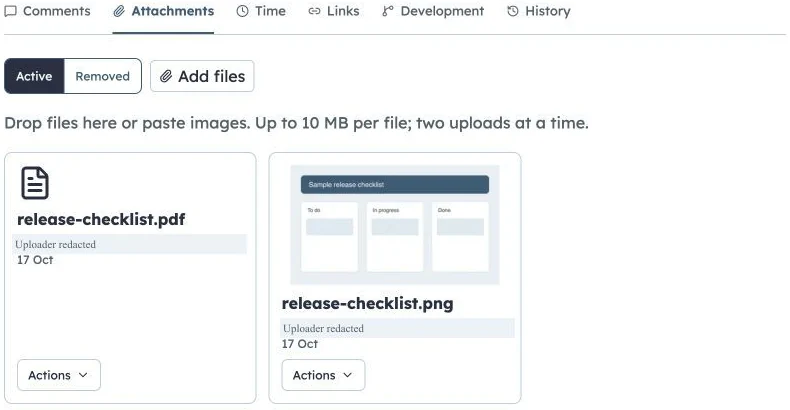
Private attachment gallery
Production fictional ticket attachments. Uploader labels are redacted; files remain private.
Embed files in text
Uploading from an active editor inserts a successful upload at the cursor. Uploading in Attachments only adds the file. Existing-file insertion offers attachments on that ticket, including file elements or inline images:
[Portal checklist.pdf](attachment:attachment-id)

Use the insertion tools for real IDs. A file element displays the current filename after a rename without rewriting Markdown. Deleting the element does not delete the file. Private copied links open the owning ticket after sign-in; they are not public sharing links.
Remove and restore
An uploader or manager/administrator with current project write access may rename, remove or restore. Removal blocks original and thumbnail access immediately. Objects are retained for 30 days, with the restore deadline shown. Switch to Removed and restore before that deadline; existing embeds become available again.
After expiry, restoration is blocked and scheduled cleanup purges retained objects. Audit/tombstone metadata remains. Removed embeds show “Attachment removed”; inaccessible or missing references use a generic unavailable element. Backups include retained originals, thumbnails and lifecycle deadlines; restoration does not restart the removal clock.