
Workflow stages and rules
Configure stages, transitions and enforceable conditions without scripts.
On this page
On this page
Model stages and transitions
Managers open Workflows for the selected project. A workflow is a directed graph: stages describe state; transitions describe permitted moves. Choose the initial stage and categorize each stage To do, In progress or Done. Ticket-type mappings choose workflows for new tickets; existing tickets retain their assigned workflow.
Add, rename and position stages, then connect permitted moves. Use the graphical canvas or labelled configuration/position controls. Keep names meaningful: To do → In progress → In review → Ready for release → Done is clearer than ambiguous numbered stages.
A board column only maps statuses; it does not create new transition permission. Workflow rules apply to ticket edits, card moves and bulk status changes.
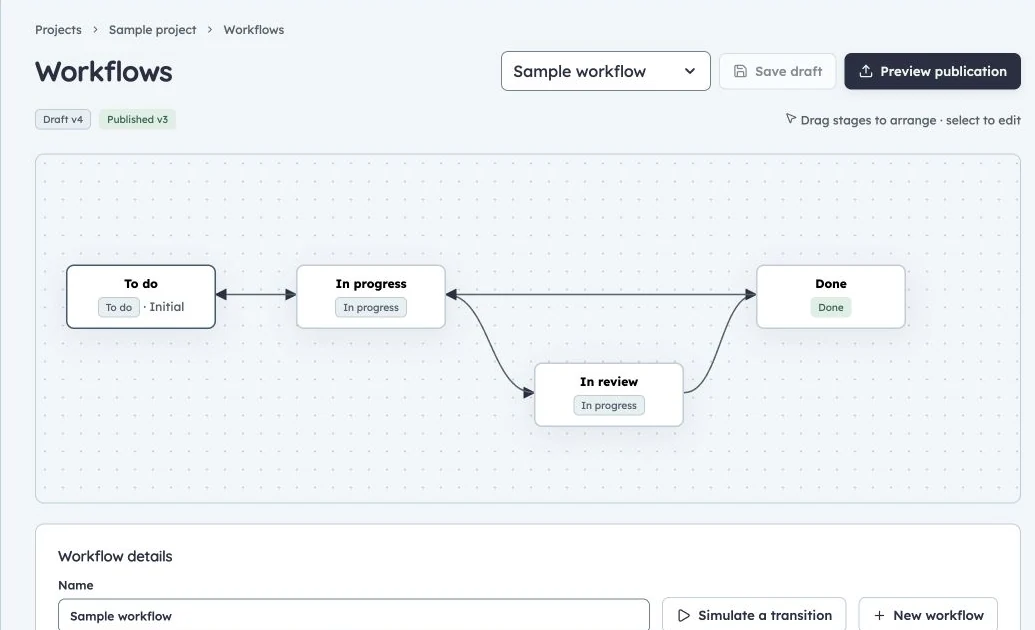
Workflow stages and publication
Production workflow draft. Stages and transitions are configured separately from published ticket behavior.
Roles and required fields
Select a transition and configure allowed roles. Required fields are a searchable list: choose none, some or all supported fields, including custom fields, Release and Release-note text. These requirements remain mandatory outside any additional OR group.
Whitespace-only text and formatting-only Markdown do not satisfy text requirements. Zero is a valid number; false is a populated checkbox. To require agreement, use an Is checked condition rather than relying on “required.” The selected destination evaluates the proposed ticket values, not only its previous saved values.
Field conditions
Use the condition builder with field-appropriate operators:
| Field kind | Useful checks |
|---|---|
| Text | Empty/populated, equals/does not equal |
| Number | Equality and greater/less-than comparisons |
| Date | Equality and before/after comparisons |
| Choice/user | Equality and membership in a list |
| Checkbox | Empty/populated, true/false equality, Is checked |
Date rule values accept YYYY-MM-DD or labelled UTC-relative forms such as today-7d, today and today+2d. These are workflow dates, not the query language's -7d timestamp syntax.
Actor and relationship conditions
Available checks include Actor is assignee, Actor is reporter, All blockers resolved, All direct children done, No pending review requests, At least one completed review request, Linked release is planned/live, and Transition reason provided.
“All direct children” does not mean every descendant recursively. No pending reviews and a completed review answer different questions; combine them when both are required. A release-state check needs an actual linked release. Inaccessible related work blocks generically without exposing its name or count.
Match all and Match any
Use Match all when every child rule must pass. Use Match any when one alternative is enough. Nest groups to express exceptions clearly, while remembering that transition roles and required fields still apply independently.
For example: require acceptance criteria and an assignee, then Match all: All blockers resolved; Match any: priority is low, or at least one completed review. This permits low-priority work without a completed review but never bypasses acceptance criteria, ownership or blockers.
Rules are bounded to 80 conditions and five nested groups. Empty groups, unavailable fields and incompatible operators are rejected. There are no arbitrary scripts, general external-agent tools or built-in GitHub CI/merge gates.
Simulate before publication
A draft does not change live behavior. Select a real accessible ticket when testing relationships; field-only examples cannot prove blocker or review state. Inspect exact failed conditions, resolve the underlying field/relationship, and simulate again.
Publication validates configuration and migration mappings. See the worked workflow tutorial for a blocked/successful path and a safe stage migration. Automation actions attached to this canvas are a separate layer; see automation.