
Releases and release notes
Plan project releases, evaluate readiness, draft notes and record or reopen a launch.
On this page
On this page
Create and populate a release
Project managers and administrators open Releases in the selected project and create a release. Set its name, description, planned date and optional Git repository/reference. A reference can name a branch or tag; recording it creates neither and does not deploy code or modify GitHub.
Members assign the Release field on individual tickets or permitted bulk changes. Choose only releases belonging to each ticket's project. Parent and subtask assignments do not inherit. Progress counts every explicitly assigned ticket, including a child and its parent if both are selected.
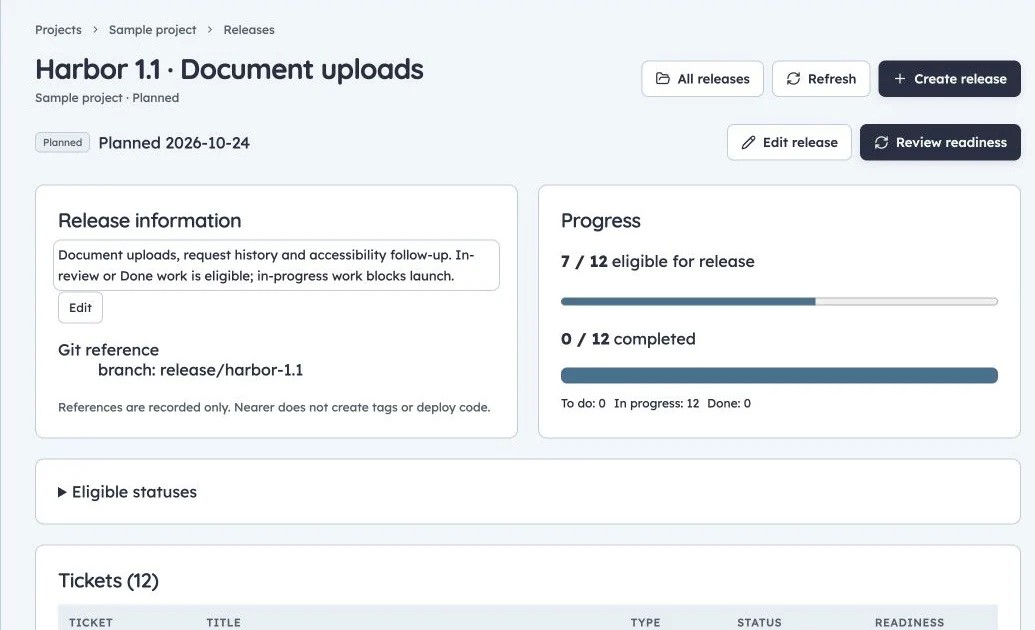
Harbor release readiness
Production Harbor 1.1 release: 7 of 12 tickets eligible, with in-progress work still blocking launch.
Readiness is separate from completion
Project settings define eligible stages for each published workflow, initially its Done stages. New releases copy those defaults. Managers may change a planned release's policy independently.
Category progress groups To do, In progress and Done. Readiness instead checks the selected eligible statuses. Harbor can make Ready for release eligible while continuing Post-release testing after launch. Selecting an eligible stage does not change its completion category.
Readiness requires at least one ticket and every included ticket in an eligible stage. Inspect blocking-ticket links. There is no readiness bypass. A workflow publication that removes a referenced stage requires readiness mappings as well as occupied-ticket mappings.
Generate and edit notes
Add short plain-text Release-note text on tickets to describe customer-visible outcomes. Otherwise generation uses their titles. Managers choose the included tickets; standard-level tickets are the default, while epics/subtasks require explicit inclusion. Review included/excluded counts.
Template generation produces Markdown grouped by type with private ticket links. Generation creates a draft; existing saved notes remain until explicitly reviewed and saved. Use the shared Markdown editor, sanitized preview, copy/download and revision history. Regeneration must not silently replace another active draft.
Optional AI drafting uses administrator-enabled models. It receives release metadata and selected keys, types, titles and release-note text, rather than comments, attachments or profile data. Review accuracy and ticket references before saving. Unavailable models, stale sources, limits or provider failure leave template generation available.
For Harbor, a note should explain “Customers can retry failed document uploads without losing their selected file,” rather than merely restating an internal implementation task.
Mark live
- Check the planned date, Git reference and saved notes revision.
- Open the live preview and resolve every blocking ticket.
- Review the eligible scope and confirm marking live.
The server rechecks the preview and versions. Changed scope or relevant data rejects a stale preview. A live event records timestamp, actor, Git reference, notes revision, readiness policy and ticket/status snapshot. It does not move tickets or perform a deployment.
Live scope and readiness configuration are locked. Status changes, testing, comments and ordinary permitted edits continue. This permits post-release verification without losing the historical launch snapshot.
Reopen deliberately
Managers can preview Reopen release, supply a reason and confirm against current versions. It returns the release to planned state and unlocks scope; previous live snapshots remain in history. Reopening does not roll back a deployment or delete a Git tag.
If a ticket cannot be assigned/removed, inspect whether its release is live. If the launch is blocked despite high completion, inspect readiness status selection rather than changing category definitions to manipulate the chart.