
Boards, backlogs and sprints
Plan Scrum delivery or Kanban flow without duplicating tickets.
On this page
On this page
Choose a board
Boards are views over shared tickets, not copies. Open Boards & sprints and choose a board. Managers configure Scrum or Kanban, query filters, mapped workflow stages, columns, quick filters, swimlanes and estimation unit. Cross-project views still exclude tickets outside the viewer's memberships.
For Harbor, the Scrum board tracks the customer-portal launch in points. The Kanban board tracks support work in hours. Both can include the same tickets; their displayed units do not convert stored estimates.
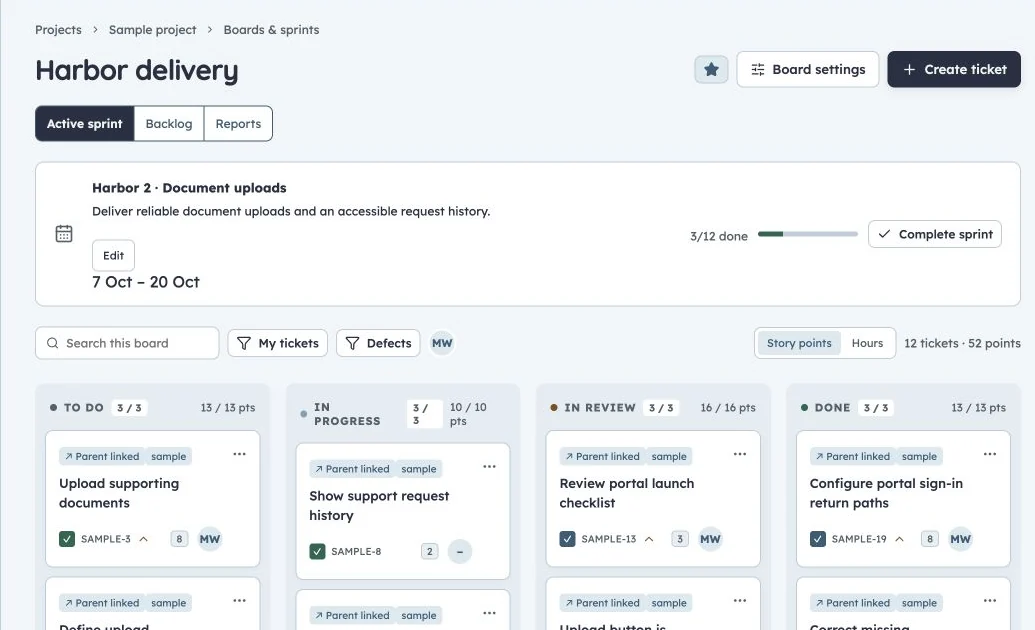
Harbor delivery board
Production SAMPLE project: Harbor delivery sprint, goal, estimates and workflow columns.
Choose fields on board cards
Project managers and administrators can open Board settings → Card fields to configure the shared layout. Ticket title, key and type are mandatory. Select zero to four optional fields; the defaults are Assignee, Board estimate, Priority and Labels. Remove a field to make room, use the up/down controls to reorder, inspect the preview, then select Save board settings. Cancel leaves the board unchanged. A version conflict keeps the draft available for comparison; it does not overwrite another manager's settings.
Search choices include ticket metadata, dates, parent, release, sprint and all active custom-field types from the board's projects. Custom fields include a project label; they appear only on tickets in that project. Empty selections retain compact placeholders such as Unassigned and No estimate. Zero and unchecked checkbox values are shown. Archived custom fields show Field unavailable until removed. Long values truncate; focus a value to read it in full.
Board estimate uses story points on a points board and original hours on an hours board. Separate Story points, Original hours and Remaining hours choices retain their own labelled units; no conversion occurs. For Harbor support, choose Assignee, Remaining hours, Priority and Due date. For feature delivery, choose Assignee, Board estimate, Release and Labels. These settings affect board cards, not backlog table columns. Execution-mode indicators and ticket actions remain available regardless of the selected fields.
Use columns and swimlanes
Columns map to workflow statuses; swimlanes divide visible work into configured groups. Quick filters narrow the view without changing tickets. Drag a card to move it, or use the ticket's status controls for keyboard operation.
A column move must be a permitted workflow transition. Missing acceptance criteria, role restrictions or unresolved blockers produce an explanation. Kanban WIP warnings show columns exceeding the configured limit; distinguish this capacity warning from mandatory workflow guards.
Rank the backlog
Open the board's backlog view. Rank tickets to express intended work order, group by epic and select tickets for bulk actions or sprint scope. An epic is useful for a portal capability; standard tickets carry deliverable work, with subtasks for smaller implementation steps.
A query or quick filter can hide backlog work. Clear filters before concluding a ticket is missing. Board rendering is bounded to 500 matching tickets; use paginated searches for larger sets rather than interpreting a partial board as the complete database.
Prepare and start a sprint
- Create a future sprint on a Scrum board.
- Set its name, dates, goal and capacity in the chosen unit.
- Add ranked work and inspect estimates and dependencies.
- Start the sprint when scope is agreed.
Only one sprint can be active on a board. A ticket has at most one current sprint. Editing a saved Markdown goal does not start or complete the sprint. Open sprint scope is limited to 500 tickets.
Use the planning sandbox
Open the planning sandbox to experiment with scope, estimates and member capacity. Draft changes do not alter live tickets. Compare differences before committing, then apply the plan explicitly.
Commit checks the affected board, sprint and ticket versions. A stale plan cannot overwrite changed live work; refresh and reconcile instead. Always compare capacity and estimates in the selected unit. Hours and points have no built-in conversion.
Complete a sprint
Review finished and unfinished work, then choose where unfinished tickets go: backlog or a future sprint. Complete explicitly. Historical membership, scope changes and recorded sprint unit remain available for reports.
Completing a sprint does not mark unfinished tickets Done. Reusing a board in a different estimation unit does not rewrite historical sprint units. See reports for interpreting velocity and burndown.
Board refresh
Choose Refresh board to load the latest snapshot immediately. Visible boards check for updates every two minutes; hidden tabs pause checks. When the snapshot has not changed, the server returns an opaque update marker after rechecking access, without reading and returning the ticket list. Changing filters, saving a ticket or updating board settings loads the affected view immediately.